
Orca Slicer: The Ultimate 3D Printing Slicer for Beginners and Experts
A community-driven, feature-rich slicer that makes your 3D printing experience smarter and smoother.
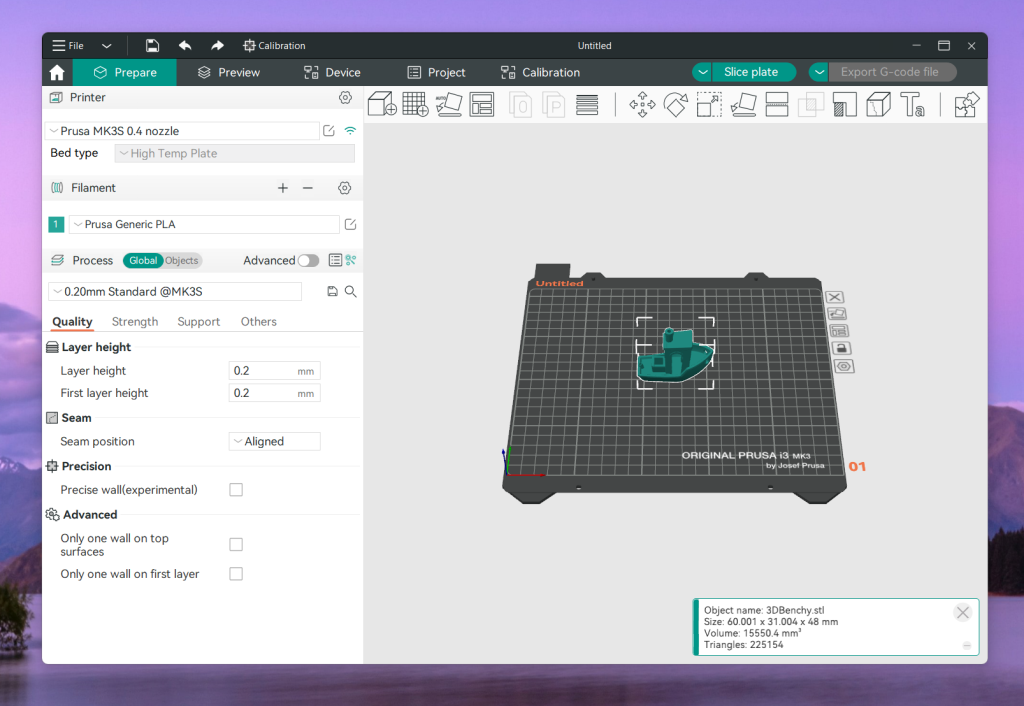
A Brief Overview of Orca Slicer
Orca Slicer is not an official product of a large corporation; rather, it is an open-source, community-driven 3D printing slicer created by fans and contributors. With regular updates from its user base, it is built for speed, accuracy, and adaptability. It is compatible with all of the main desktop operating systems, including Windows, macOS, and Linux.
Why Choose Orca Slicer?
Advanced Instruments for Calibration
With the help of Orca's built-in flow, extrusion, temperature, retraction, and other wizards, you can achieve "print-ready" accuracy more quickly.
An interface rich in features
For precise control, every element of your print is visible, including wall settings, seam placement, and infill.
Cross-Platform Assistance
Orca Slicer functions flawlessly and is updated for Windows, macOS, and Linux.
Community-Based
Features, bug fixes, and enhancements are the result of active community participation rather than corporate roadmaps. This slicer is shaped by hands-on 3D printing enthusiasts.
Open Source & Free
Orca Slicer has no hidden fees and is completely free. Transparency, adaptability, and community accountability are guaranteed by its open-source nature.
Getting Started with Orca Slicer
- Download & Install
Head to the official GitHub releases page and grab the installer for your system (Windows / macOS / Linux). - First Launch Setup
On opening Orca, you’ll be prompted to pick or create a printer profile — choose your printer (or its close match) and set up filament / bed dimensions. - Loading Models
Use File → Import (or drag‑and‑drop) to bring in.stl,.3mf, or other supported 3D model files into the workspace. - Basic Settings
Adjust key parameters like layer height, print speed, infill percentage, and support structures. These settings live in panels like “Quality,” “Support,” and “Infill.” - First Print Export
When satisfied, click Slice / Export G-code. You can either save the G-code file (for use via SD card) or send it directly to your printer if it’s network‑connected.
Deep Dive into Features
Intelligent Calibration
Orca comes with built-in calibration wizards for temperature tower tests, pressure advance/PA tuning, and flow rate tuning. These eliminate the need for guesswork by assisting you in adjusting the ideal extrusion and temperature settings for various materials.
Performance Slicing
Because the engine is tuned for speed and accuracy, it can produce clear, effective G-code rapidly while minimizing travel movements and print artifacts.
Modes of Stealth and Smoothness
Do you want ultra-smooth surfaces or whisper-quiet printing? To lessen noise and enhance the appearance of outer walls, Orca provides modes that slow movement or smooth pathing.
Compatibility of Multiple Brands
You are not restricted to a single printer ecosystem by Orca. With the help of community-provided profiles and machine settings that can be customized, it supports a large range of brands and models.
Custom Supports & Modifiers
You are not relegated to using stock supports, you can add custom supports (or "exclusion zones") or modifiers for each region in your model. This gives you complete control of strength, overhangs, and print time.
Comparisons with Other Slicers
Curious how Orca Slicer stacks up against other popular options? Check out these detailed comparisons to help you choose the right slicer for your setup:
- 🔄 Orca Slicer vs Bambu Studio – Understand the key differences in performance, UI, and ecosystem support.
- 🆚 Orca Slicer vs Cura – See how Orca compares to this long-standing open-source slicer.
- ⚖️ Orca Slicer vs Creality Print – Find out which is better suited for Creality machines and broader use.
🧭 These guides not only boost SEO but also help new users explore alternatives and make informed decisions.
Frequently Asked Questions
Is Orca Slicer completely free?
Yes — Orca Slicer is entirely free and open source. There are no hidden fees, licenses, or premium features to unlock.
Can I use it on non-Bambu printers?
Yes, absolutely. While it works well with Bambu printers, Orca Slicer supports all kinds of brands, including Creality, Prusa, Anycubic, and others with customizable profiles.
Does Orca Slicer work on Ubuntu?
Yes! Orca Slicer works on both Ubuntu and other Linux distributions. You can download the Linux build directly from the official GitHub releases page.
How is it different from Cura?
While both are great slicers to use, Orca Slicer has built-in calibration tools, a more modern UI, and more refined integration with more recent printers. A lot of users claim it is faster and more beginner-friendly out of the box.